



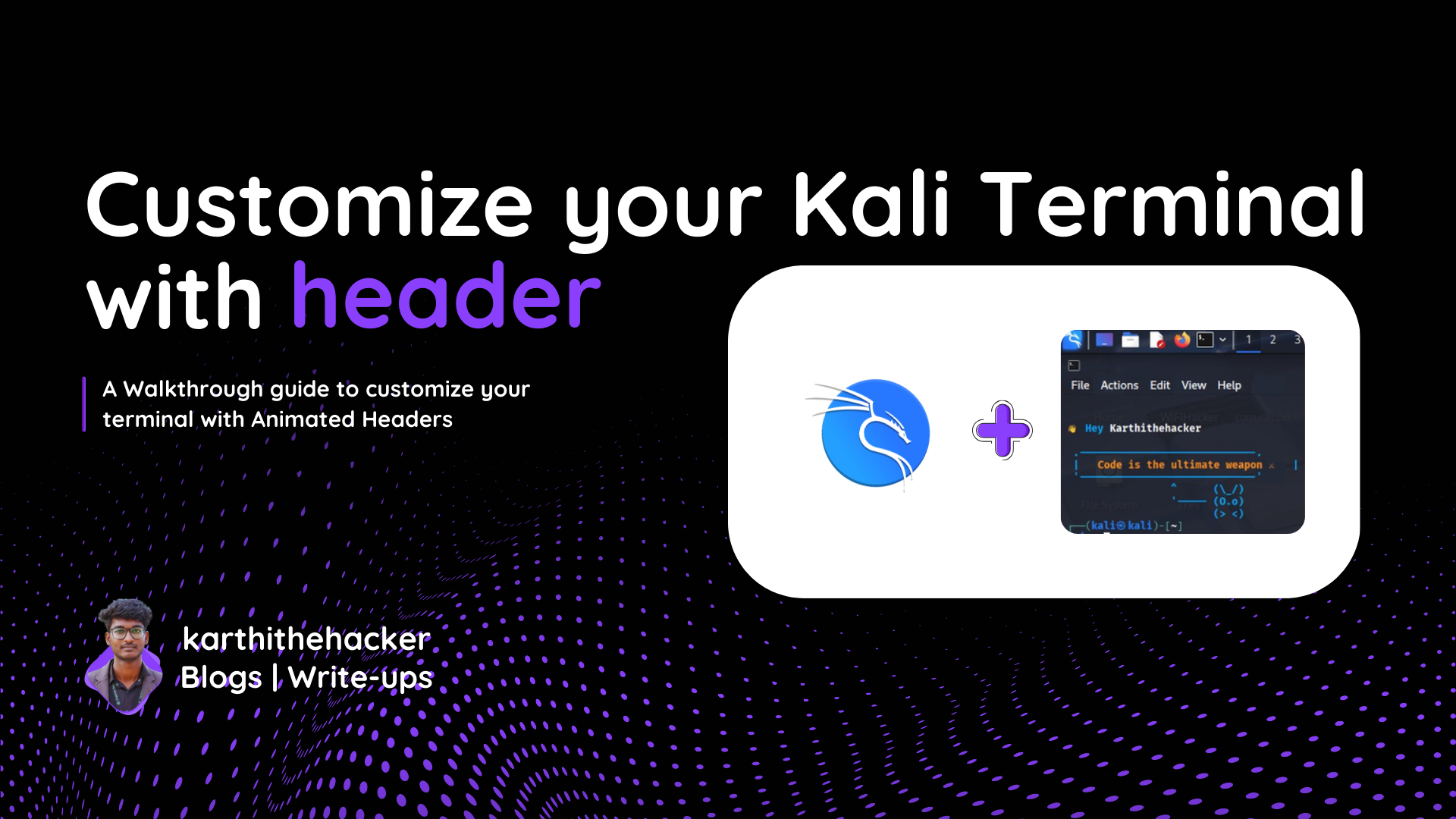


Learn how to create your customized terminal in Kali Linux 🔨
The Linux terminal is one of the most powerful tools for developers, hackers, and system administrators. But staring at a plain black-and-white screen every day can get monotonous. Why not give your terminal some personality?
One of the easiest and most fun ways to do this is by adding a custom animated header with a quote that appears every time you open the terminal.
💡 Why Customize Your Terminal?
Customizing your terminal is not just about aesthetics—it’s about creating an environment that inspires you every time you log in. A vibrant ASCII banner, a motivational quote, or even a hacker-style animated message can:
- Set the tone for your work session.
- Keep you motivated with your favorite quotes.
- Help you identify which system you’re logged into (useful when managing multiple machines).
- Add a touch of creativity to your daily workflow.
🎨 Bringing Quotes to Life with Animation
One of the easiest and most fun ways to do this is by adding a custom animated header with a quote that appears every time you open the terminal.
Imagine opening your Kali Linux terminal and being greeted with something like:
   ======================================================
     Welcome back, Karthithehacker!
     Today's mission: Find vulnerabilities, not bugs.
     Remember: With great power comes great responsibility.
   ======================================================
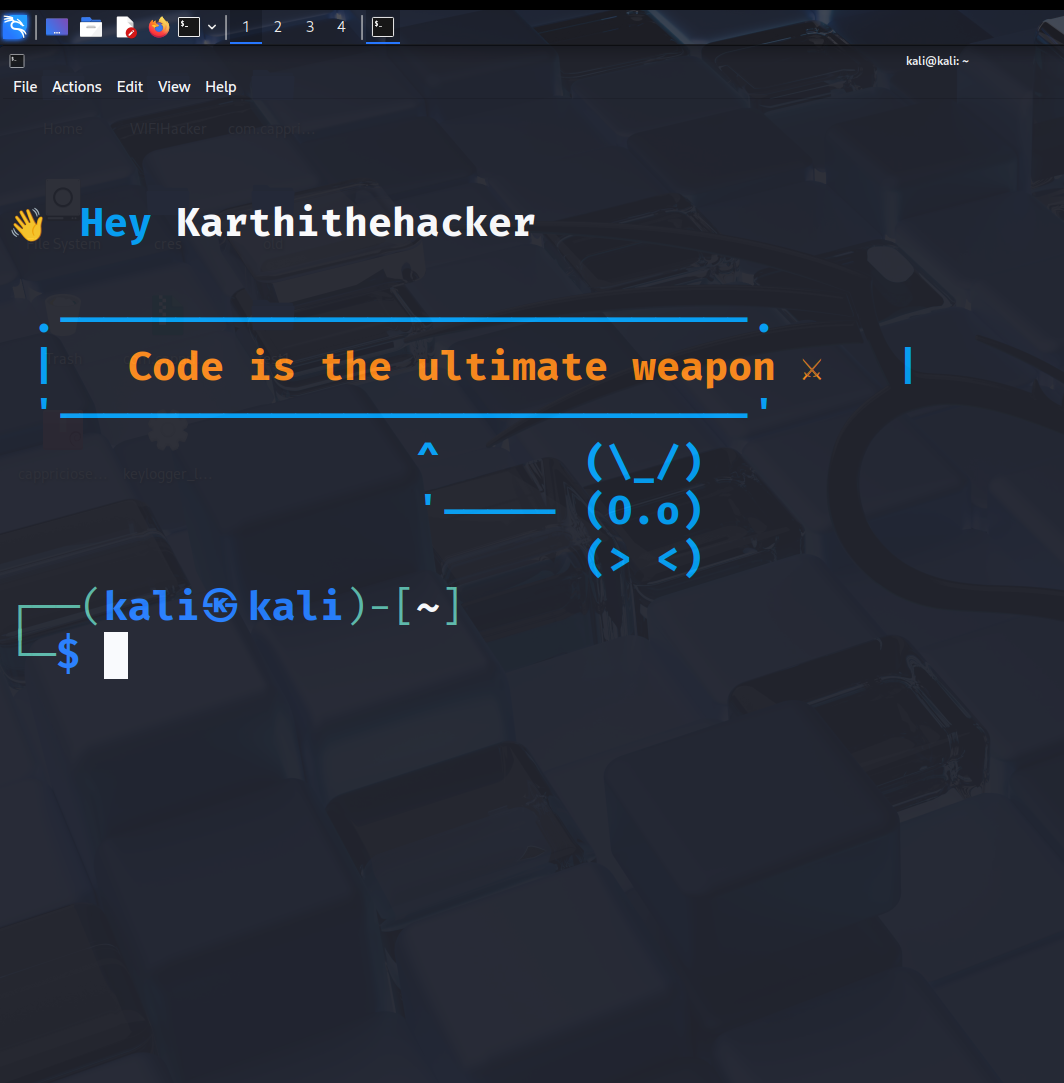
⚡ How It Works
The magic behind this setup combines a few simple steps that handle text and animations in the terminal. Together, they transform your plain terminal into a welcoming, dynamic space. Let's walkthrough the process:
1) 🔢 Run the Banner.sh script
Displays your Quoted animation header in the terminal.
    Open: Terminal
    Type: ./banner.sh and run
    Output: Your animated header with quotes will display.
    Note: Ensure banner.sh is executable (chmod +x banner.sh)
2) 🧑🎓 View the script
Using cat, it displays the contents of the banner.sh script.
    Run: cat banner.sh
    Copy: the script content
    Then: Exit terminal
    Output: Displays the script content.
3) ✏️ Write the script to your file
To save the script in your environment, you can follow this step.
    Run: nano .bashrc (or .zshrc for zsh users)
    Type: Paste the script content at the end of the file.
    To Save: Ctrl + O, Enter, Ctrl + X to exit
4) 🌐 Enter a New Tab
As you can see, your customized terminal is taking shape!
    Enter: Open a new terminal tab or window
    Then: Displays the animated header with quotes.
    Output: Interactive terminal with your custom header.
🎯 Bash script for the Animated Quote Header
This script will create an animated header with quotes for your terminal.
   #!/bin/bash

   cyan='\e[1;36m'
   red='\e[1;31m'
   green='\e[1;32m'
   white='\e[1;37m'
   yellow='\e[1;33m'
   reset='\e[0m'

   quotes=(
      "Hack the Planet 🌍"
      "Code is the ultimate weapon ⚔"
      "Exploit. Adapt. Overcome."
      "In the world of 0s and 1s, I choose chaos."
      "H4ck3rs d0n't sl33p, th3y c0d3."
      "Every firewall has a weak spot 🔓"
      "Trust me, I'm root 👾"
      "Think like a hacker, secure like a pro 🔐"
   )

   quote=${quotes[$RANDOM % ${#quotes[@]}]}

   echo -e "\n\n${cyan}👋 Hey ${white}Karthithehacker${cyan}\n"
   echo -e " .-----------------------------.           "
   echo -e " |   ${yellow}${quote}${cyan}   |"
   echo -e " '-----------------------------'           "
   echo -e "                 ^      (\\_/)    "
   echo -e "                 '----- (O.o)    "
   echo -e "                        (> <)    "
🎉 Conclusion
With just a bit of creativity, your Kali Linux terminal can go from plain to personalized and inspiring.
Every time you launch it, you’ll be greeted by your custom animated header—reminding you why you love working with Linux in the first place ❤️
🔒 Ethics & Boundaries
- ✅ Keep your quotes inspirational and professional, especially if you’re working in shared environments.
- 🚫 Avoid using animations that might confuse or mislead other users on a multi-user system.
- 🚫 Always maintain an ethical mindset—let your terminal header remind you of responsible hacking and learning.
- 🔐 Personalization should enhance productivity, not become a distraction.
A little creativity is great, but it should always go hand in hand with professionalism and ethics.
🙋 FAQ
Q: Will customizing my terminal break anything in Kali Linux?
A: No. Adding an animated header is a cosmetic change. As long as you edit your configuration carefully (like .bashrc), your system will function normally.
Q: Can I disable the animation later if I don’t like it?
A: Yes. You just need to remove or comment out the script line in your .bashrc file. After that, your terminal will go back to normal.
Q: Is it safe to use these customizations on a shared or work machine?
A: It’s generally safe, but always keep your workplace or shared system policies in mind. Avoid flashy or inappropriate quotes, and make sure your customization doesn’t interfere with other users.
🤝 Built for the Community
Created by Karthithehacker to make cyber security education accessible to everyone.
⚠️ Disclaimer
This script is for educational use and authorized security purpose only. Do not use it to violate laws, platform policies, or others’ privacy. You are responsible for how you use the information and tools.